
Varsity Skipper
Downloads · Version 0.5.1 · Mac, Linux and Windows
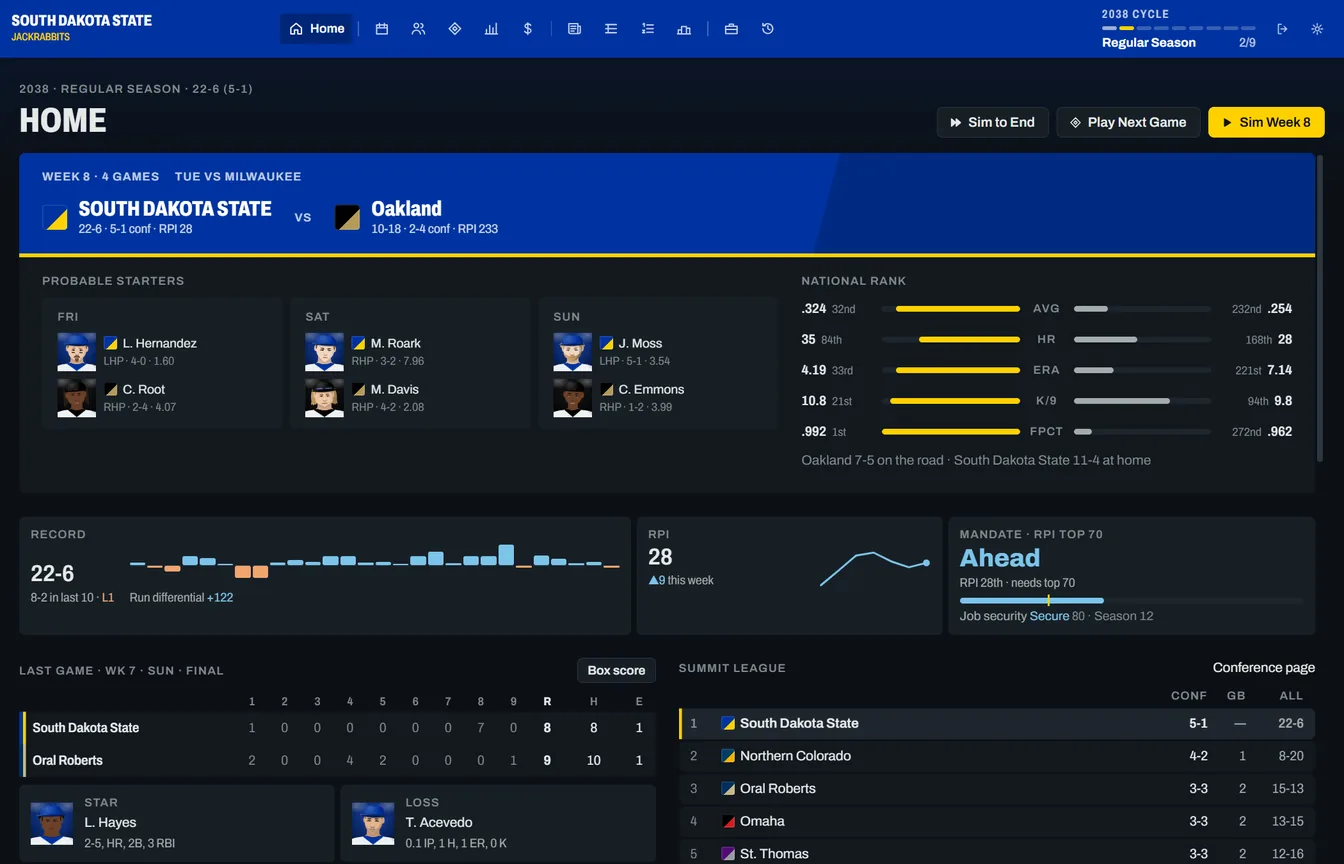 Screenshots →
-
Mac · Testing build
For Apple Silicon and Intel Macs running macOS 11 or newer. File size: 12.9 MB.
Download for MacInstall and start the game
- Open the downloaded DMG.
- Drag Varsity Skipper into Applications.
- Open the game from Applications.
- This testing build is not Apple-notarized. If macOS blocks it, open System Settings > Privacy & Security, select Open Anyway, and confirm. On older macOS versions, use System Preferences > Security & Privacy > General.
No developer tools or Steam required. Your saves stay on your Mac.
-
Linux / Steam Deck
For 64-bit Linux and LCD and OLED Steam Decks. File size: 81.4 MB.
Download Linux AppImageStart the game in Desktop Mode
- On your Steam Deck, select Switch to Desktop from the Power menu.
- Open this page in the Steam Deck browser and select Download Linux AppImage.
- Open the Downloads folder in the file manager.
- Find
varsity-skipper-0.5.1-linux-x86_64-dbba70a69e3c.AppImageand open its context menu with a right-click. - Select Properties > Permissions and check Is executable.
- Select OK and open the AppImage file.
The AppImage includes the Steam Deck screen-size and graphics corrections. No Konsole commands or Proton required.
Start the game in Gaming Mode
- In Desktop Mode, open Steam.
- Select Add a Game > Add a Non-Steam Game > Browse.
- Select the new AppImage file from Downloads and select Add Selected Programs.
- Open the game's Properties > Compatibility in your Steam Library.
- Clear Force the use of a specific Steam Play compatibility tool.
- Set the controller layout to Keyboard and Mouse.
- Open Return to Gaming Mode on the desktop and start the game from your Steam Library.
An old Steam shortcut can still start an old AppImage. Update the shortcut to use the new file.
Use the full screen
In the game, open Settings and set Fullscreen to On.
-
Windows installer
Use this installer for Windows. It installs the game and checks for WebView2. File size: 5.0 MB.
Download installer -
Game executable
If WebView2 is installed, open this file to start the game on Windows. File size: 13.3 MB.
Download game EXE -
Windows MSI installer
This MSI file is another installer for Windows. File size: 6.7 MB.
Download MSI -
Real World 2027 universe
This custom universe contains real schools, conferences, NCAA postseason names, and award names.
Download real-world universePrepare the universe files
- On Steam Deck, switch to Desktop Mode.
- Download and open
real-world-2027.zip. - Extract all files to a folder named Real World 2027 in Downloads.
- Make sure the folder contains
programs.csv,conferences.csv, anduniverse.json.
Import the universe into the game
- Start Varsity Skipper, select New Game, and open the Universe tab.
- Select Import and enter Real World 2027 in the Name field.
- Select Choose Universe Files and open the extracted folder.
- Select all three files and confirm the selection.
- Make sure the game lists all three filenames and select Import.
- Select Real World 2027 from the universe list and continue the new-game setup.
The game imports the three extracted files. It cannot import the ZIP file directly. Existing saves keep their original universe.